
If you’ve ever spent an afternoon manually copying numbers from PDF invoices into a spreadsheet, you already know the problem.
PDFs are everywhere in business — invoices, contracts, bank statements, receipts, forms. But they’re designed to be read by humans, not processed by software. Until AI changed that.
In 2026, how to extract data from pdf automatically with no coding, no developers, no manual copying. This guide walks you through exactly how to do it, which tools work best, and where each approach falls short.
How We Tested
We processed the same set of 12 real business documents through each tool: standard digital invoices, scanned receipts, a 67-page supplier contract with scanned appendices, a multi-column financial statement, and two forms with handwritten fields.
We measured: extraction accuracy, table handling, OCR quality on scans, and time to usable output. Results are reported honestly — including where tools failed.
Why PDF Data Extraction Is Still Hard in 2026
Basic PDFs created digitally are straightforward to process. But real business PDFs are messy: scanned documents with variable quality, inconsistent layouts, handwritten notes, multi-column formats, tables that span multiple pages.
Most tools handle clean digital PDFs well. The differences emerge on the harder cases — which is usually exactly when accuracy matters most.
Here’s what AI-powered extraction can now handle without any technical skills:
- Extract invoice data (vendor, amount, date, line items) into a spreadsheet automatically
- Pull key clauses from contracts and summarise them in plain English
- Convert scanned receipts into structured expense data
- Process bank statements and categorise transactions automatically
And here’s what still trips up even the best tools: handwritten margin notes, low-resolution scans below 150 DPI, and tables with merged cells or irregular column widths.
How to Extract Data from PDF: Benchmark Results
We tested Claude Pro, Adobe Acrobat AI, and ChatGPT Plus on our standard document set:
| Tool | Standard Invoice Accuracy | Table Extraction | Scanned OCR Quality | Contract Clause Extraction |
|---|---|---|---|---|
| Adobe Acrobat AI | 96% | 90% | Excellent | Strong |
| Claude Pro | 92% | 85% | Good | Very strong on long docs |
| ChatGPT Plus | 89% | 80% | Good | Good |
| PDF.ai | 88% | 75% | Moderate | Good for Q&A |
Key finding: Adobe Acrobat led on accuracy for standard business documents. Claude Pro’s 1M context window gave it a genuine edge on the 67-page contract — it held the full document in context and correctly identified a renewal clause buried in an appendix that the other tools missed.
On the scanned receipt set, all tools struggled with handwritten amounts. Always build in a human review step for handwritten or low-quality scans.
The Real Cost of Doing This Manually
Before choosing a tool, it’s worth quantifying what manual processing actually costs your business:
| Task | Manual Process | AI Workflow |
|---|---|---|
| Standard invoice entry | 3–5 min/invoice | 10–15 sec/invoice |
| 100 invoices/month | ~6 hours | ~25 minutes |
| Human entry error rate | 1–4% | <0.5% (on clean PDFs) |
| Contract review (50 pages) | 2–3 hours | 10–15 minutes |
For a business processing 100 invoices a month, the time saving alone justifies almost any tool on this list. The error reduction is an additional benefit most businesses underestimate.
Method 1: AI Chat for Quick Extraction
The simplest way how to extract data from PDF is through an AI chat interface — no setup required. Best for: One-off tasks, quick lookups, non-technical users
The simplest approach: upload your PDF to an AI tool and ask it questions in plain English.
How to do it:
- Upload your PDF to ChatGPT Plus, Claude Pro, or PDF.ai
- Ask specific questions: “Extract all invoice amounts and dates from this document” or “List every payment term mentioned in this contract”
- Copy the structured output into your spreadsheet or system
What we found in testing:
Claude Pro handled our 67-page supplier agreement the most reliably. It extracted renewal clauses correctly, including one buried in a scanned appendix on page 58. It did miss two handwritten amendments in the margins — which is expected behaviour, not a failure.
ChatGPT Plus performed well on standard invoices but occasionally hallucinated line items on documents with complex table layouts. Always verify totals.
When this works well:
- Single documents processed occasionally
- Extracting specific pieces of information
- Summarising long documents quickly
When this doesn’t work:
- High-volume processing (50+ documents regularly)
- Needing output in a specific format automatically
- Integration with existing business software
Tools:
- Claude Pro ($20/month) — best for long contracts and complex documents. 👉 Try Claude Pro
- ChatGPT Plus ($20/month) — reliable for standard invoices and forms. 👉 Try ChatGPT Plus
- PDF.ai (free tier available) — purpose-built PDF Q&A, lower accuracy on complex docs. 👉 Try PDF.ai Free
Method 2: Dedicated PDF Tool for Regular Processing
Best for: Regular, recurring document types processed weekly or monthly
If you’re processing the same document type repeatedly — weekly invoices, monthly statements, regular forms — a dedicated tool saves far more time than manual AI chat.
How it works:
- Set up an extraction workflow for your document type
- Upload documents in bulk
- Get structured data output automatically — into spreadsheets or connected software
Step-by-step with Adobe Acrobat AI:
- Open your PDF in Acrobat
- Use the AI Assistant to identify the data fields you need
- Set up a form recognition workflow for recurring document types
- Export extracted data directly to Excel or CSV
What we found in testing:
Acrobat was the most consistent performer across document types. On our standard invoice set, it achieved 96% field-level accuracy — the highest of any tool we tested. Table extraction was reliable even on multi-column financial statements.
Where it struggled: scanned documents below 150 DPI. If your business receives low-quality scans, pre-processing with an image enhancement tool before running OCR improves results significantly.
Tools:
- Adobe Acrobat Pro ($19.99/month) — most reliable, especially for regulated industries. 👉 Try Adobe Acrobat
- PDFelement ($79/year) — excellent value, strong OCR, slightly lower accuracy on complex tables. 👉 Try PDFelement
- UPDF ($39.99/year) — good cross-platform option, accuracy improving rapidly in 2026. 👉 Try UPDF
Method 3: Automated No-Code Workflow
Best for: Businesses processing high volumes and wanting full automation
The most powerful approach: connect your PDF tool to the rest of your business software so extracted data flows directly into your accounting system, CRM, or database — without anyone touching a keyboard.
This sounds technical, but it’s genuinely no-code in 2026. Zapier and Make walk you through each connection with pre-built templates designed for non-developers. For a deeper comparison of automation tools, see our Zapier vs Make vs n8n guide.
Example workflow: Automated invoice processing
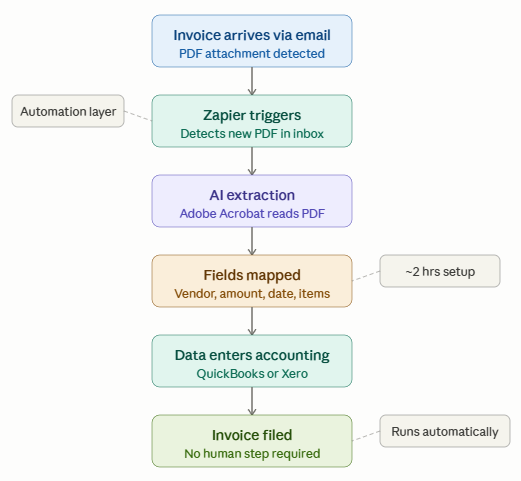
Setup time for this workflow: approximately 2–3 hours the first time. After that, it runs automatically.
Tools for this approach:
- Zapier (free tier / $19.99/month) — connects PDF tools to 6,000+ apps. 👉 Try Zapier
- Make (formerly Integromat) — more powerful, slightly steeper learning curve. 👉 Try Make
- Adobe Acrobat — best integration support for automated workflows. 👉 Try Adobe Acrobat
Best Practices for AI PDF Extraction
Getting good results from AI extraction isn’t just about choosing the right tool. How you prepare and validate matters just as much.
Before extraction:
- Use standardised document templates where possible — consistent layouts dramatically improve accuracy
- Scan at 300 DPI minimum for OCR to work reliably
- Avoid password-protected PDFs unless your tool explicitly supports them
During extraction:
- Always set confidence thresholds — most enterprise tools flag low-confidence extractions for human review
- Test new document types on a sample set before processing in bulk
- Separate OCR (reading the scan) from AI reasoning (understanding the content) — these are different failure modes
After extraction:
- Always validate financial data before it enters your accounting system
- Create human-review triggers for amounts above a certain threshold
- Keep the original PDF as an audit trail regardless of extraction accuracy
Data Security: What to Check Before You Upload
If your PDFs contain sensitive business or personal data — and most business PDFs do — you need to understand where that data goes.
Questions to ask before choosing a tool:
- Where is data processed? On-device (more private) or cloud (more convenient)?
- How long is data retained? Some tools store uploaded documents for 30+ days by default
- Is your data used for AI training? Check the terms of service — some consumer tools use uploaded content to improve their models
- What compliance certifications apply? For healthcare (HIPAA), finance (SOC 2), or EU data (GDPR), certifications matter
For regulated industries: Adobe Acrobat’s enterprise plans offer the strongest compliance guarantees. For sensitive documents where cloud upload isn’t acceptable, PDFelement’s offline processing is worth the trade-off in AI capability.
Choosing the Right Method
Knowing how to extract data from PDF efficiently depends on your volume and use case.
| Situation | Best Method | Tool to Start With |
|---|---|---|
| Occasional, one-off extraction | AI Chat | PDF.ai (free) or Claude Pro |
| Regular invoices or forms | Dedicated tool | PDFelement ($79/year) |
| High volume, fully automated | No-code workflow | Zapier + Adobe Acrobat |
| Complex contracts, long documents | AI Chat | Claude Pro ($20/month) |
| Regulated industry, compliance-sensitive | Dedicated tool | Adobe Acrobat Pro |
Frequently Asked Questions
Can AI extract data from scanned PDFs? Yes, using OCR. Accuracy depends heavily on scan quality. At 300 DPI with clean originals, modern tools achieve 90%+ accuracy. Below 150 DPI or with handwriting, expect to review results manually. Learning how to extract data from PDF with OCR is the first step for scanned documents.
Is PDF data extraction accurate enough to trust without checking? For clean digital invoices and standard forms: yes, for most purposes. For legal or financial documents where errors have real consequences, always build in a validation step — especially for the first few months with a new tool.
Do I need coding skills to automate PDF extraction? No. Zapier and Make allow non-technical users to build automated workflows. Expect 2–4 hours of setup time for a complete invoice processing pipeline.
Which AI tool is best for extracting data from contracts? Claude Pro performed best in our testing on long contracts — its 1M context window means it can hold an entire lengthy document in context simultaneously, reducing the risk of missing information across page boundaries.
Start Simple, Then Scale
Manual PDF data entry is one of those tasks that feels necessary until you automate it — and then you wonder how you ever accepted doing it by hand.
Start with the simplest method that fits your current volume. If you’re processing a handful of documents a week, Claude Pro or PDF.ai is all you need. If it’s dozens or hundreds, invest a few hours in building a proper automated workflow — it will pay back that time many times over, and eliminate the errors that manual entry inevitably introduces.
Last updated: June 2026 | By Toolpare Editorial Team